Web UI
AI Marketplace Monitor includes a built-in web interface for editing your configuration and monitoring activity in real time. The web UI starts automatically when you run the monitor — no extra setup needed.
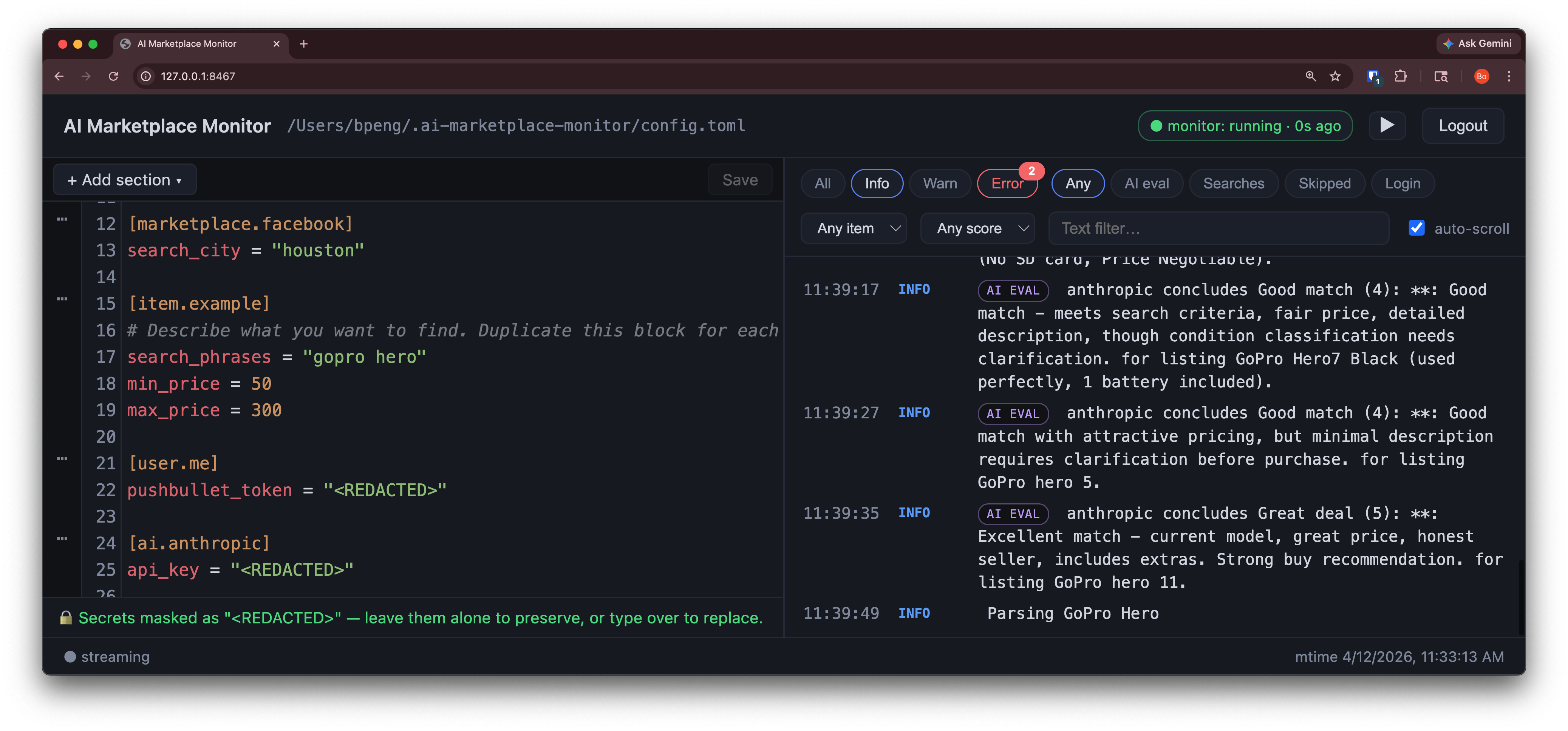
Overview
The web UI provides:
TOML Config Editor with syntax highlighting, powered by CodeMirror
Add / Edit / Delete config sections (items, AI backends, users, marketplaces) through guided forms
Live Log Streaming with filtering by level, item, AI score, and text search
Export CSV button in the header downloads all found (notified) listings — link, price, rating, and details — as a CSV file
Auto-validation of your config as you type
Getting Started
Simply run the monitor:
ai-marketplace-monitor
The web UI is available at http://127.0.0.1:8467. A startup banner in the terminal shows the URL:
╭──────────── Web UI ────────────╮
│ 🌐  http://127.0.0.1:8467      │
│                                │
│ No password required           │
│ (local access only).           │
╰────────────────────────────────╯
On localhost, no password is required. Open the URL in your browser and start editing.
Disabling the Web UI
If you don’t need the web UI, disable it with:
ai-marketplace-monitor --no-webui
Changing the Port
To use a different port:
ai-marketplace-monitor --webui-port 9090
Advanced: Remote Access
By default, the web UI only listens on 127.0.0.1 (localhost) and requires no password. To access it from another machine on your network, you need to:
Configure credentials so the web UI is protected by a login screen.
Bind to a network interface so other machines can connect.
Open a firewall port if your system has a firewall enabled.
Step 1: Set up username and password
The web UI uses your marketplace credentials for authentication. Set them in your config file:
[marketplace.facebook]
username = "you@example.com"
password = "your-password"
Or use environment variables:
[marketplace.facebook]
username = "${FACEBOOK_USERNAME}"
password = "${FACEBOOK_PASSWORD}"
Then set the environment variables in your shell before running the monitor:
export FACEBOOK_USERNAME="you@example.com"
export FACEBOOK_PASSWORD="your-password"
Step 2: Bind to a network interface
Use --webui-host to listen on all interfaces:
ai-marketplace-monitor --webui-host 0.0.0.0
The startup banner will show all reachable URLs:
╭──────────────── Web UI ────────────────╮
│ 🌐  http://127.0.0.1:8467              │
│ 🌐  http://192.168.1.42:8467           │
│                                        │
│ user:      you@example.com             │
│ password:  (from marketplace config)   │
│                                        │
│ ⚠  Bound to non-loopback interface.    │
│    Consider TLS via a reverse proxy.   │
╰────────────────────────────────────────╯
You can also specify a port:
ai-marketplace-monitor --webui-host 0.0.0.0 --webui-port 9090
Note: If no credentials are configured,
--webui-hostwill refuse to start and display an error. This prevents accidentally exposing an unprotected editor on the network.
Step 3: Open a firewall port
If your machine has a firewall, open the web UI port. For example, on Ubuntu with ufw:
sudo ufw allow 8467/tcp
On macOS, allow incoming connections through System Settings > Network > Firewall.
On Windows, add an inbound rule in Windows Defender Firewall > Advanced Settings.
Warning: Exposing the web UI on a network means anyone who can reach the port can attempt to log in. Consider using a reverse proxy (nginx, Caddy, Tailscale) with TLS for encrypted connections, especially over untrusted networks.
CLI Options Reference
Option |
Default |
Description |
|---|---|---|
|
|
Enable or disable the web UI |
|
|
Bind address (requires credentials if not loopback) |
|
|
Port for the web UI |
|
|
Number of log messages kept in memory |