Web UI
AI Marketplace Monitor includes a built-in web interface for editing your configuration and monitoring activity in real time. The web UI starts automatically when you run the monitor — no extra setup needed.
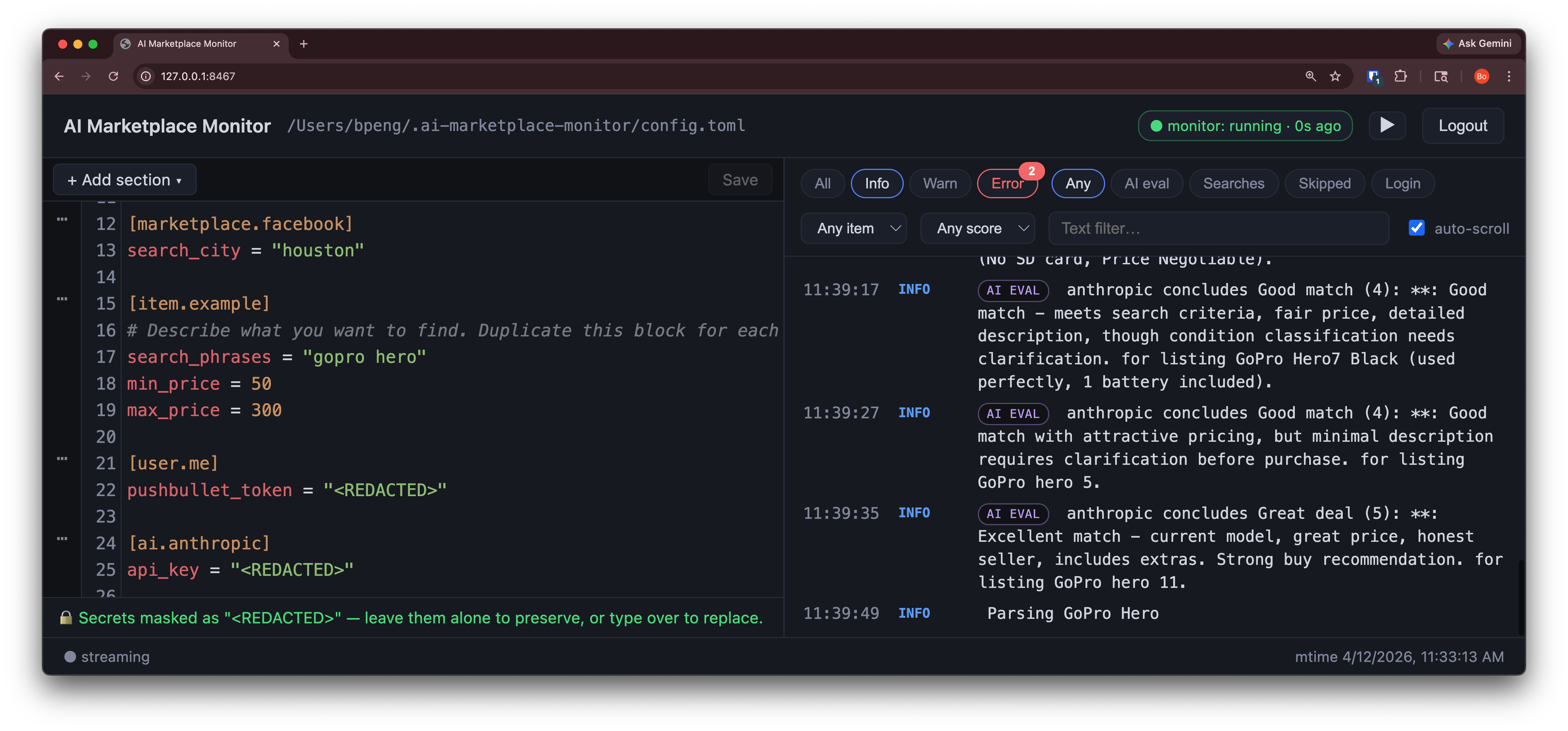
Overview
The web UI provides:
TOML Config Editor with syntax highlighting, powered by CodeMirror
Add / Edit / Delete config sections (items, AI backends, users, marketplaces) through guided forms
Live Log Streaming with filtering by level, item, AI score, and text search
Auto-validation of your config as you type
Getting Started
Simply run the monitor:
ai-marketplace-monitor
The web UI is available at http://127.0.0.1:8467. A startup banner in the terminal shows the URL:
╭──────────── Web UI ────────────╮
│ 🌐  http://127.0.0.1:8467      │
│                                │
│ No password required           │
│ (local access only).           │
╰────────────────────────────────╯
On localhost, no password is required. Open the URL in your browser and start editing.
Disabling the Web UI
If you don’t need the web UI, disable it with:
ai-marketplace-monitor --no-webui
Changing the Port
To use a different port:
ai-marketplace-monitor --webui-port 9090
Advanced: Remote Access
By default, the web UI only listens on 127.0.0.1 (localhost) and requires no password. To access it from another machine on your network, you need to:
Configure credentials so the web UI is protected by a login screen.
Bind to a network interface so other machines can connect.
Open a firewall port if your system has a firewall enabled.
Step 1: Set up username and password
The web UI uses your marketplace credentials for authentication. Set them in your config file:
[marketplace.facebook]
username = "you@example.com"
password = "your-password"
Or use environment variables:
[marketplace.facebook]
username = "${FACEBOOK_USERNAME}"
password = "${FACEBOOK_PASSWORD}"
Then set the environment variables in your shell before running the monitor:
export FACEBOOK_USERNAME="you@example.com"
export FACEBOOK_PASSWORD="your-password"
Step 2: Bind to a network interface
Use --webui-host to listen on all interfaces:
ai-marketplace-monitor --webui-host 0.0.0.0
The startup banner will show all reachable URLs:
╭──────────────── Web UI ────────────────╮
│ 🌐  http://127.0.0.1:8467              │
│ 🌐  http://192.168.1.42:8467           │
│                                        │
│ user:      you@example.com             │
│ password:  (from marketplace config)   │
│                                        │
│ ⚠  Bound to non-loopback interface.    │
│    Consider TLS via a reverse proxy.   │
╰────────────────────────────────────────╯
You can also specify a port:
ai-marketplace-monitor --webui-host 0.0.0.0 --webui-port 9090
Note: If no credentials are configured,
--webui-hostwill refuse to start and display an error. This prevents accidentally exposing an unprotected editor on the network.
Step 3: Open a firewall port
If your machine has a firewall, open the web UI port. For example, on Ubuntu with ufw:
sudo ufw allow 8467/tcp
On macOS, allow incoming connections through System Settings > Network > Firewall.
On Windows, add an inbound rule in Windows Defender Firewall > Advanced Settings.
Warning: Exposing the web UI on a network means anyone who can reach the port can attempt to log in. Consider using a reverse proxy (nginx, Caddy, Tailscale) with TLS for encrypted connections, especially over untrusted networks.
CLI Options Reference
Option |
Default |
Description |
|---|---|---|
|
|
Enable or disable the web UI |
|
|
Bind address (requires credentials if not loopback) |
|
|
Port for the web UI |
|
|
Number of log messages kept in memory |